

Lenovo recently launched the Lenovo ThinkPad T14 Gen 6, and we are fortunate to have a unit feature the AMD Ryzen AI 7 PRO 350 processor and AMD Radeon 860M integrated graphics. Today, I will remove its bottom cover to explore the upgrade options for its memory, SSD, and wireless card. In addition, I will also access the components such as the battery, cooling system, speakers, and motherboard.
Remove the bottom cover
If you have already installed the SIM card, please remove it and the tray before removing the bottom cover.
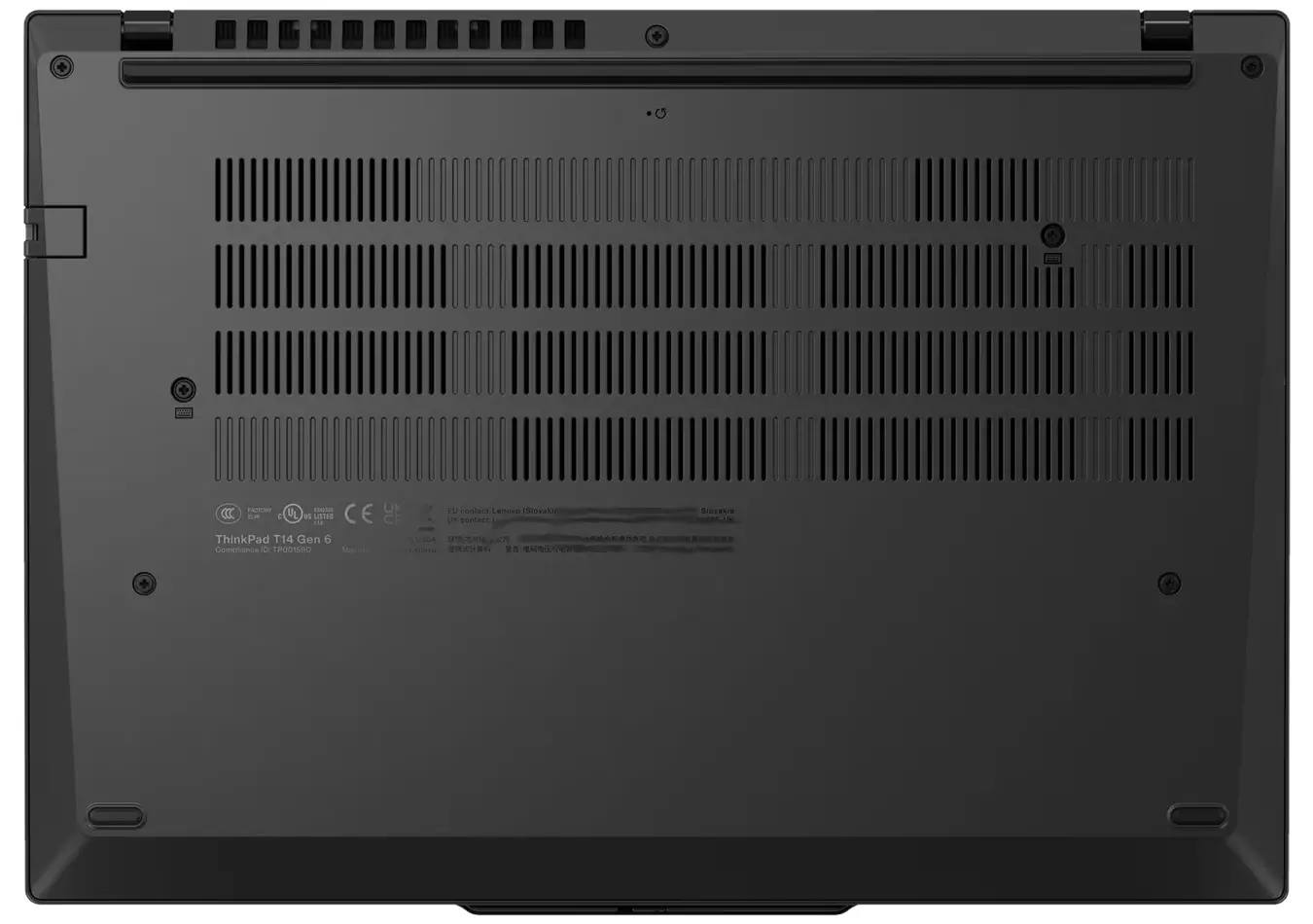
Use a screwdriver to loosen the 7 screws on the bottom cover. Please note that all screws are non-detachable. At the right hinge, insert a pry tool between the bottom cover and palm rest. Slide the pry tool along the edge of the bottom cover until the bottom cover comes off the laptop.
Note: There are many clips on the bottom cover to secure it to the laptop. Be careful not to damage the clips during removal.
Remove the battery
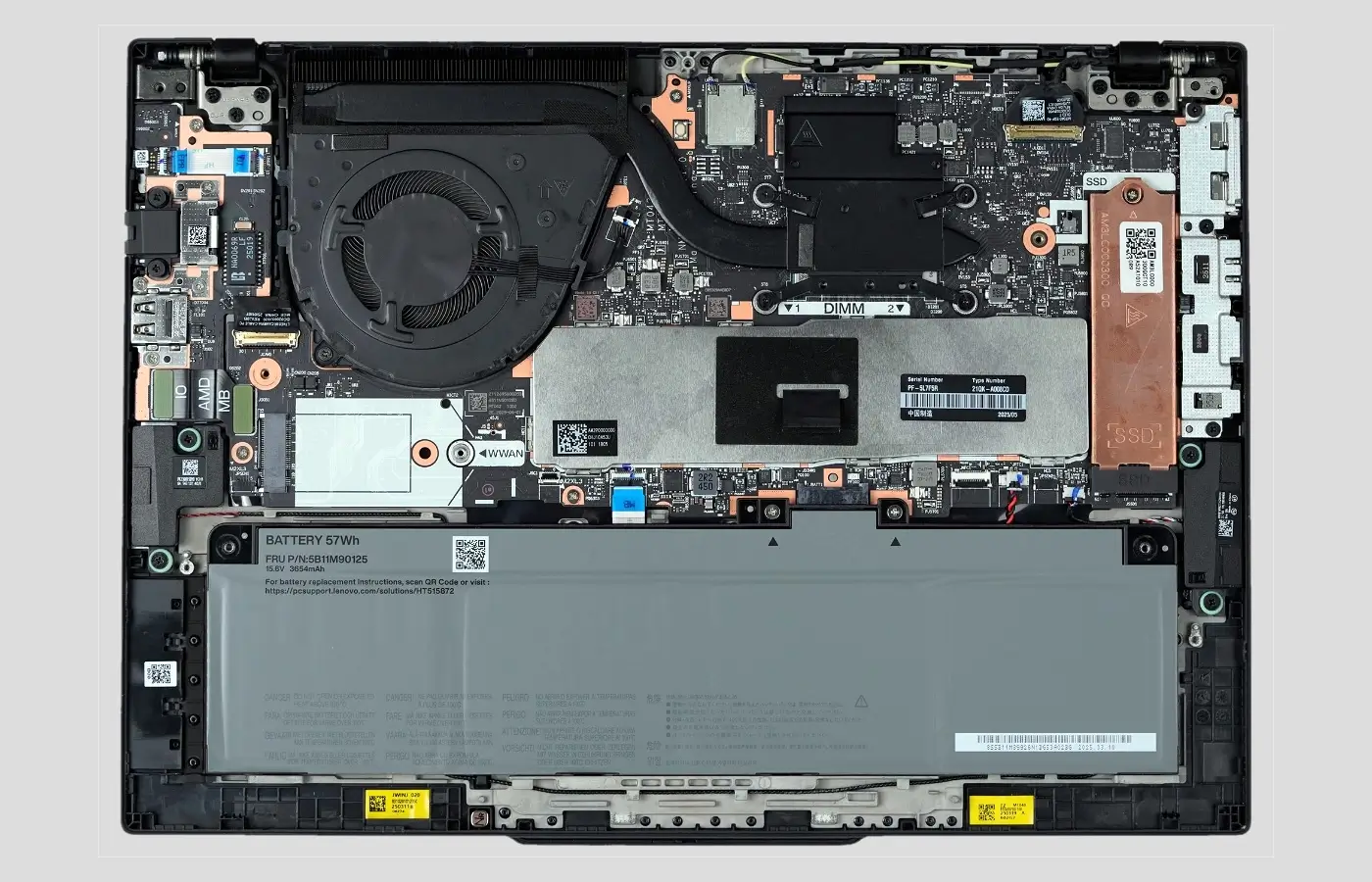
Before upgrading any components, remove the battery to prevent short-circuit damage to the laptop. Use a screwdriver to loosen the two screws near the battery connector, then remove one screw on the left side and one on the right side. The ThinkPad T14 Gen 6 comes with a 57Wh battery.
Upgrade the memory
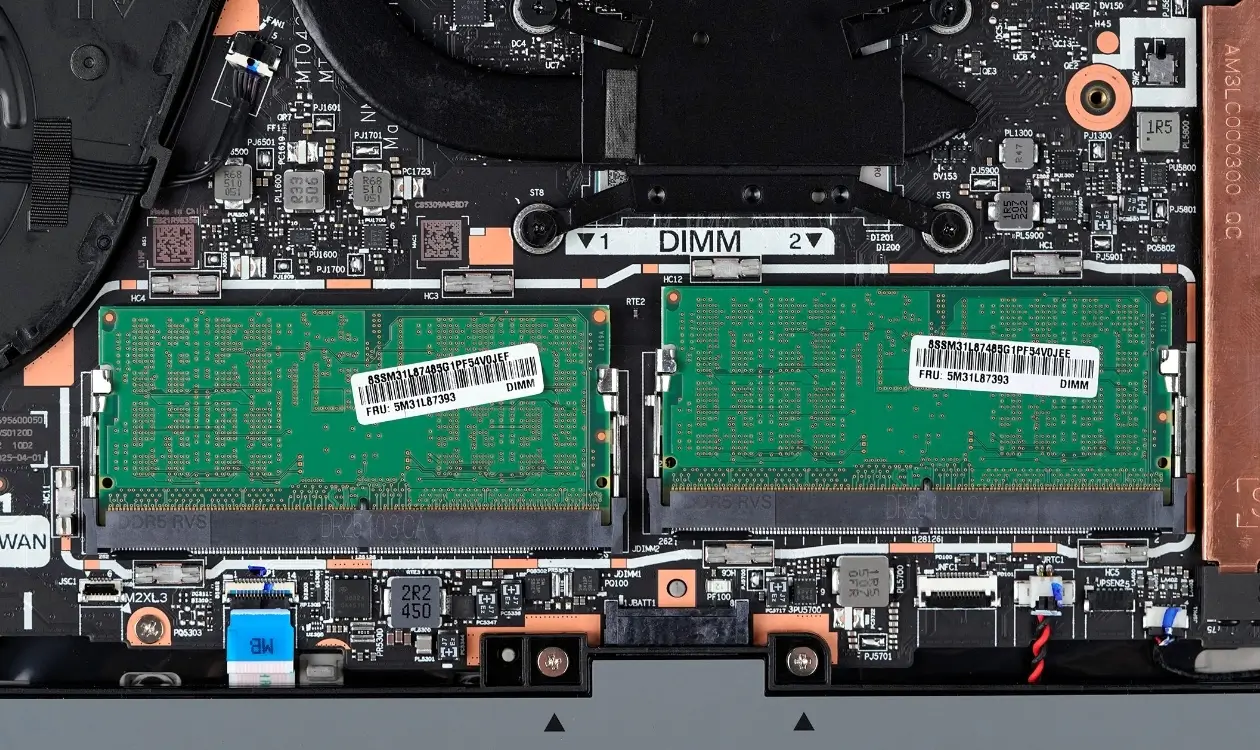
The memory modules are covered with a metal shield, which effectively reduces interference and ensures more stable operation. Lift the easy-removal tab and remove the metal shield to access the two memory modules. This laptop comes with two 16GB Micron DDR 5600MHz memory sticks, forming 32GB of dual-channel memory. According to Lenovo’s official website, this laptop supports up to 64GB of memory, which means you can replace the existing memory modules with two 32GB 5600MHz sticks. However, given current high memory prices, upgrading memory will be very expensive.
Upgrading the SSD
Under the pure copper heat sink on the right side, there is a 2280 M.2 slot with a Hynix PC801 512GB SSD installed. It supports PCIe 4.0 x4. According to Lenovo’s official website, this laptop supports up to a 2TB M.2 PCIe NVMe SSD, which means you can replace the existing drive with a 2TB PCIe NVMe SSD.
Additionally, on the left of the memory module, there is an M.2 slot compatible with 2230 and 2242 SSDs. Although the slot is labeled WWAN, users can install an additional SSD to expand storage.
Note: I have not found confirmed information about installing an SSD in this slot. If you successfully install an SSD, please leave a comment.
Cooling System
This Lenovo ThinkPad T14 Gen 6 is powered by an AMD Ryzen AI 7 PRO 350 processor, which has good heat control. Therefore, its cooling system includes one fan and a copper heat pipe, but it ensures good cooling performance.
Wireless Network Card
This laptop comes with an MT7925 wireless network card, which supports Wi-Fi 7 and Bluetooth 5.4. However, since the wireless network card is soldered onto the motherboard, it can not be upgraded.